SECURETSPLAYER

We recommend
Other Dreamweaver Extensions:
flash music player
mp3 music flash
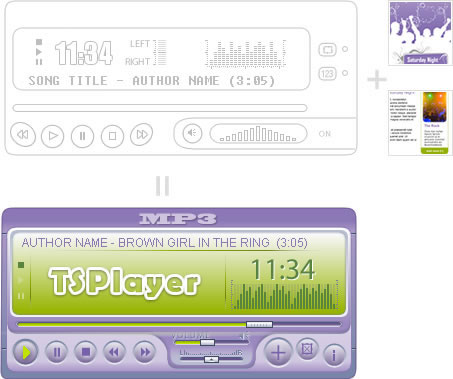
SECURE-TSPlayer is a flash music player designed especially for people that need to protect the audio files from unauthorized download.

SECURE-TSPlayer Admin V2.0 - Documentation


INTRODUCTION

"SECURE-TSPlayer Admin V2.0" allows a complete administration of the audio player "SECURE-TSPlayer" from user's website. The music player has been developed to be compatible with most kinds of web servers with minimal software requirements.

"SECURE-TSPlayer Admin V2.0" is distributed under GNU/GPL License.

The product SECURE-TSPlayer Admin V2.0 is distributes in two versions, the basic version and the full featured version. The basic version of the product is free of charge, but does not include the music player and the sound files, plus the associated images must be managed by the user through an FTP software. Client support is only through the FAQ (Frequently Asked Questions). Questions can be sent to the customer support contact but the replies will be directed to the FAQ section of our product as updates.

The full featured product includes: all tools required to manage the music players, the audio files and the associated images can be managed without the use of third party software, such as FTP clients. The full featured version includes professional and direct support, by our own support team. If you don't have a Secure music player yet, you can purchase the administration system with the music player included (purchasing the administration system and the music player as a combo is more cost efficient than buying both items separately).

  Basic music player administration system Full featured music player administration system Full featured music player administration system + Classic Secure Music Player
Create new music players yes yes yes
Edit music players yes yes yes
Remove music players yes yes yes
Upload, rename and remove MP3 sound files yes yes yes
Upload, rename and remove JPG images files yes yes yes
Create subfolders to organize the images and sound files yes yes yes
Software support Only by FAQ Full support by professional team Full support by professional team
Include a Secure Music Player yes yes yes (Includes the Classic secure music player)
Cost and download Free of cost, click here for download

$ 25 USD

Preferred payment method:
Fast checkout through Google
Alternative payment method
(5% surcharge applies):

Music player Administration system + Music player -20% = $43.99 USD

Preferred payment method:
Fast checkout through Google
Alternative payment method
(5% surcharge applies):

The instructions for accessing your purchase will appear in a yellow box at the top of your Google Checkout Order Receipt page. You will be redirected to a Download Page and your Download Link will be also emailed to the address used for the payment.

go to top

"SECURE-TSPlayer Admin V2.0": WHAT DOES IT DO?

  • Using "SECURE-TSPlayer Admin V2.0", you can generate a new SECURE-TSPlayer to insert it in any of your website pages.
  • With "SECURE-TSPlayer Admin V2.0" you can modify the playlist for any of the players already installed on your website.
  • "SECURE-TSPlayer Admin V2.0" allows you to modify certain features of the settings in any of the SECURE-TSPlayers installed on your website. Also, the password used for the secure playback can be updated for each player.
  • Using "SECURE-TSPlayer Admin V2.0" it is possible to manage the MP3 audio files to playback in the music player and their associated images.
  • "SECURE-TSPlayer Admin V2.0" informs you about the new skins for the music player that have been created and published on the TSPlayer website.

go to top

REQUIREMENTS

"SECURE-TSPlayer Admin V2.0" requires PHP script support on the server where the application is hosted.

"SECURE-TSPlayer Admin V2.0" requires the folders location for the "SECURE-TSPlayer", the skins, and resources, to be relative to the website root (For example, if the SECURE-TSPlayer folder is in the website root, the folder location is root/SECURE-TSPlayer). The folders location is entered from the setup section in the administration system.

"SECURE-TSPlayer Admin V2.0" requires writing permissions on the folder that contains the SECURE-TSPlayer, in order to generate new players from the admin site.

"SECURE-TSPlayer Admin V2.0" requires writing permissions on the folder that contains the audio and image files, in order to upload, rename or remove the resource files.

go to top

HOW TO INSTALL "SECURE-TSPlayer Admin V2.0"

To install "SECURE-TSPlayer Admin V2.0" on your webserver, please follow these steps:

  1. Obtain a version of the SECURE-TSPlayer and insert it in your website.
  2. Download "SECURE-TSPlayer Admin V2.0" from our website.
  3. Copy the folder "tsplayer_admin" part of "SECURE-TSPlayer Admin V2.0" - to the webserver.
  4. Modify the setup of the "SECURE-TSPlayer Admin V2.0" with the real data of the website where "SECURE-TSPlayer Admin V2.0" is installed. The system setup can be modified from the "Setup" section, it is recommended to set an administration password to prevent intruders from accessing the system.

go to top

HOW TO SET UP "SECURE-TSPlayer Admin V2.0"

Open the "System Setup" section, through the main menu.

The system setup is very easy and intuitive, see the image. The setup fields are described below:

Setup

Enter the administration password: Use an administration password to prevent intruders  from accessing your administration system. Recommended.

Enter the resources folder location: Set the location to the folder that contains the MP3 audio files that will be played in the music player, and associated JPG image files. The resources folder requires to have writing permissions and must be relative to the website root (starting by the "/" symbol).

Enter the players folder location: Set the location to the SECURE-TSPlayer folder. The SECURE-TSPlayer folder must have writting permissions, because the new players will be created in it. The SECURE-TSPlayer folder location must be relative to the website root (starting by the "/" symbol).

Enter the skins folder location: Set the location to the folder that contain the skins for the music player downloaded from our website. The skins folder location must be relative to the website root (starting by the "/" symbol).

IMPORTANT NOTE:

The separator between folders to locate in different setup fields must be the symbol "/" (never "\").

Every setup field that needs a folder location path has a correctness button associated to it, in order to check the path entered. The check button avoids future malfunctions. Before saving the system setup data the fields are checked too.

In the left column of the "Setup" section are showed the PHP Script configuration options. The incorrect selection of the setup options can be source of problems for the music player. To modify the PHP Script configuration, you must  contact the hosting administrator.

go to top

HOW TO USE "SECURE-TSPlayer Admin V2.0"

To access "SECURE-TSPlayer Admin V2.0", please, access the web page named index.php, located within the tsplayer_admin folder (Fig. 1). On this page, enter the password that will allow access to administration. The administration password was defined in the "Setup" section. If you don't have any administration password, the "Players" section will be loaded directly.

Sign in

Fig. 1 Sign in the administration system.

If the password is invalid, an error message will be shown. In case the password is valid, the "Players" section will be shown (Fig. 2).

Players section

Fig.2 Players section.

The Players section

In the "Players" section it is possible to create, modify or remove a music player created previously.

The left column contain the buttons to create a player and the list of players inserted in the web server previously. The trash icon beside the music player is used to remove the player. Be careful with the remove option, the music player can be in use on some web pages of your website.

The right column contains a wizard form to create or modify a music player. The wizard has three steps:, the playlist step (Fig. 3) to define the music for the playlist, the Setup step (Fig. 4) to select the skin to be used,  and finally the Output step (Fig. 5) to generate the music player and the code for it to be pasted in the web page where the music player will be placed.

Edit playlist

Fig. 3 Edit the music player playlist.


Music player setup

Fig. 4 Music player setup.


Generate music player

Fig.5 Generate the music player.


Defining the music player playlist.

Every row on the playlist is an audio file for the music player. Every audio on the playlist has a group of data associated:

Title to be shown in the player during playback

Location, which is the relative address of the MP3 audio file. This is the only mandatory field.

Information associated to the audio file is an URL that can be used as additional information, as well as a purchase page or download page of the audio file.

Associated image  is an image file that will be shown in the player while playing an MP3 file to which the image is associated. Normally this field is used to show the cover of the CD where the audio file is included.

To add or delete elements in the playlist, simply use buttons "+" and "-".

To modify fields of  the playlist elements, click on the field that you wish to modify and edit it.

Entering the setup information for the music player

The music player setup contains the fields below:

Select a skin for the music player: The skin must to be selected among those that can be found in the skin folder entered in the "System Setup" section.

Enter a secure password for the music player: The password entered will be used to playback the audio files in the secure mode.

Select a volume by default: This field determines the starting volume for audio playback.

Check the box to display the playlist: Defines if the playlist is shown (or not) when the audio player starts.

Check the box to activate the autoplay in the music player: Determines if the music player should start playback automatically upon full page download, or should wait until the website user starts it manually.

Check the box to activate repeat playlist button: Determines if the music player should be repeating the playback of all the files in the playlist in a loop.

Check the box to activate the shuffling playlist button: Defines if the audio files are selected randomly from the playlist or played in sequence.

Generating the music player in the "Output" wizard step

In the third step we complete the creation of the audio player. In this process we create a folder structure for XML files that contain the playlist and the settings of the audio player, as well as the PHP script file in charge of the playback secure.

Before generating the music player is recommended to enter the URL where the music player will be inserted. The URL field is only used in the administration system as an additional information field to know the page that will be affected if the music player is removed or modified.

To create each player, the PHP script file must be taken from http://www.tsplayer.com/tsplayer_admin/getDownloadScript.php. This way the file is actualized, and free from any anomalies that users may report to developers. Therefore internet connectivity is required to create a player.

Once an audio player is created its code will appear in the text area. This code must be pasted on the web page of your website. Under the text area, the audio player is shown already functional with the playlist and settings applied.

The Files management option

The "Files" section (Fig. 6) can be accessed through the "Files" option in the main menu. In the "Files" section (only accessible in the full featured version of the SECURE-TSPlayer administration system) it is possible to upload, rename or remove files and folders, from the resource folder location, defined in the "System Setup" section.

Files management

Fig. 6 Files management section.

The left column in the screen is a navigation panel to visit or modify the folders containing the resources to be used by the music player. The system is only able to manage the files that are used by the music player (MP3 audio files and JPG image files). Every folder name shown in the left column has two buttons, to rename and remove the folder, respectively.

The right column displays the list of MP3 and JPG files contained in the selected folder. Every item displayed in the right column has two buttons, rename and remove the file, respectively.

The top of the right column has a form to upload new files to the selected folder. The file size to upload is limited by the PHP Script configuration in the web server.

Be careful with the actions in the "Files" section because the files may be associated to a music player created previously.

The System Configuration option

Go to How to set up "SECURE-TSPlayer Admin V2.0" in this page.

go to top