TSVideo - Video Player
TSVideo flash based appearance
You can see the changes in the interface of the video player if you change the options below and press the "Refresh" button.
|
|||||||||||||||
TSVideo javascript appearance
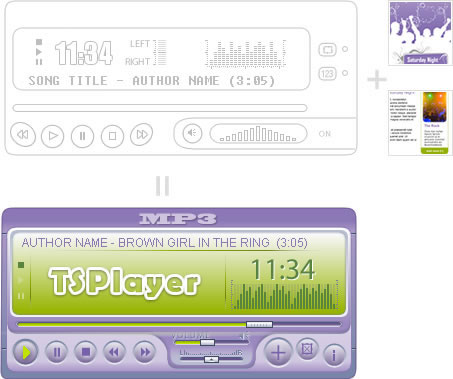
Using the javascript wrapper you can write a dynamic html interface for the video player and decide the visual appearance completely.
Product Features
- Playback of video files in FLV format by default. Other formats are supported depending on software installed in client's computers.
- Supports different formats of playlist: XSPF, RSS, AGRIYA and ATOM
- Allows a link for each video with associated information
- Allows an image for each video in jpg format
- Allows a caption file for each video in Time Text XML
- The controls of video player may be hidden
- The tones of video player may be modified by setup
- The behavior and features may be modified by setup
- Available as Dreamweaver extension and as manually installation
- A javascript version of the interface of video player is available
- If your website require to generate the playlist dynamically, the video player contain a demo in PHP script
- The sources and demos are present in product distribution
Files Included
- A functional demo
- TSVideo as Dreamweaver extension
- TSVideo javascript wrapper
- A PHP Script for playlist generation reading the data from a MySql database
- Sources files for modifications
Product Price:
Preferred payment method: Fast checkout through Google
(5% surcharge applies):
Pay with Paypal / Credit Cards
Video Player details
- Screenshots and Video Tutorials
- Requirements and Installation
- Use Description and Tips
- Playlist and Resources
- Frequently Asked Questions
- Reviews and User Opinions
Video Player Interface
- Video stage.
- Playlist with the list of items.
- Button for close the playlist
- Button for display the playlist.
- Button for display the video in fullscreen mode.
- Button for display the associated caption to the video.
- Button for playback the previous video in the playlist.
- The Play/Pause button.
- The Stop button.
- Button for playback the next video in the playlist.
- The seek bar and button for jump to different sections in the video.
- The Mute ON/OFF button.
- The volume control.
The visual appearance of the TSVideo player is highly customizable. You can change the player's size and hide most controls; location of controls that remain visible can be changed automatically from the control bar. You can also assign a color or an alpha value; using both values, a different color shade is applied to player's controls.
Screenshots for insertion process
Video Tutorial
Video Player Requirements
Flash Player 9, or later version, is required to supporting TSVideo Player. TSVideo has been implemented using the potential of Action Script 3.0 and the improvements that Adobe Flash CS3 introduced in the media support.
Adobe Dreamweaver MX 2004 and superiors. (Only if you are inserting the video player as a Dreamweaver extension)
Video Player Installation
The distribution package of video player has five folders inside:
- TSVideo source, this directory includes the sources of TSVideo product in case of require to implement new features.
- The Dreamweaver extension folder, to install the video player from Dreamweaver application (It is the most easy manner to install the video player. Recommended mode).
- JSWrapper, contain the javascript file to insert in the webpage if you want to load the optional interface of video player. Notice: For assistance a readme.txt file was included.
- Samples, this directory has a functional demo for the standard interface of video player and a second webpage for the optional interface.
- DBPlaylist, in case of require to generate the playlist dynamically from a Database this folder is the starting point.
To publish the video player manually follow the steps below:
<object classid="clsid:d27cdb6e-ae6d-11cf-96b8-444553540000" codebase="http://download.macromedia.com/pub/shockwave/cabs/flash/swflash.cab#version=9,0,0,0" width="356" height="300" id="tsvideo" align="middle">
<param name="allowScriptAccess" value="always" />
<param name="allowFullScreen" value="true" />
<param name="movie" value="TSVideo/TSVideo.swf" />
<param name="quality" value="high" />
<param name="bgcolor" value="#ffffff" />
<param name="flashvars" value="volume=60&repeat=2&load=TSVideo/xml/xspf.xml&controlbar=1&autoplay=1&playlistbutton=1&fullscreenbutton=1&captionbutton=1&previousbutton=1&nextbutton=1&volumecontrol=1">
<embed src="TSVideo/TSVideo.swf" quality="high" bgcolor="#ffffff" width="356" height="300" name="tsvideo" flashvars="volume=60&repeat=2&load=TSVideo/xml/xspf.xml&controlbar=1&autoplay=1&playlistbutton=1&fullscreenbutton=1&captionbutton=1&previousbutton=1&nextbutton=1&volumecontrol=1" align="middle" allowScriptAccess="always" allowFullScreen="true" type="application/x-shockwave-flash" pluginspage="http://www.macromedia.com/go/getflashplayer" />
</object>
... as Dreamweaver extension
The extension has been developed to be installed in Adobe Dreamweaver MX 2004 and superior versions. To install the Video Player as a Dreamweaver extension follows the steps below.
After install the Video Player extension you must to restart the Adobe Dreamweaver application.
TSvideo may be inserted manually in the website or using a the Adobe Dreamweaver extension. The last way is the recommended because the process is very straightforward and intuitive.
Using TSVideo directly without Dreamweaver
Configuring TSVideo
TSVideo as an Adobe Dreamweaver extension
TSVideo as Dreamweaver extension allows to the users the publication of videos in their pages with great facility and hardly any web development skills.
First, open the page where the video player will be inserted, in Adobe Dreamweaver.
Notice: the webpage must be previously saved and the website correctly defined.
Then press the option menu: "Commands/Insert TSVideo" to display the insertion setup.
The interface (Fig.) is described below:

1. Button to add a new element in the playlist.
2. Button to delete an element from the playlist.
3. Shows the videos inserted in the playlist. The fields to enter for each element are:
Title, title of the video in the playlist;
Location, path of video file;
Creator, the name of video's author;
Information, URL to a webpage with information associated to the video. It can be accessed through a button in the playlist elements;
Associated Image, image associated to the video, It is shown as a thumbnail in the playlist elements;
Caption, URL to a file with the video's subtitles.
Notice: From previous fields, only the Location is mandatory.
4. Button to edit a playlist item. Before press the button, one item must be selected.
5. Show Control Bar, defines whether to show the control bar, whenever the video player is loaded.
6. Show Playlist Button, defines the visibility of button to display the playlist.
7. Show Fullscreen Button, defines whether to show the button that allows to switch the video player to Full Screen mode.
Notice: for display the video player in full mode the TSVideo must be inserted in a webpage and the attribute "allowFullScreen", in the <object> tag, must be set to true.
8. Show Caption Button, responsible to control the subtitles.
9. Show Previous Item Button, this button allows to select (from the playlist) a video that precedes the one being played.
10. Show Next Item Button, this button that allows to select (from the playlist) a video that follows the one being played.
11. Show Volume Control, defines whether the volume control elements will be shown. Both the Volume Bar and the Mute Button are considered "volume control elements."
12. Volume (1..100), option to set the initial value for the player's volume.
13. Autoplay, defines whether the first playlist video should be played automatically once the player is loaded.
14. Repeat, tells the video player to either: repeat the same video over and over again, Value 1, or to repeat the whole playlist over and over, Value 2. Value 0 tells the player to stop and await for user's action once the playlist is completed.
15. Screen color, accepts values: "transparent" or a valid color code in #RRGGBB format. The background behind the video is shon in the selected color, or simply hides it.
16. Tone, accepts a valid color code in #RRGGBB format; it, combined with the configuration parameter alpha, is used to apply a color to the video player's controls. Alpha accepts an integer between 0 and 100.
17. Alpha, accepts integer between 0 and 100.
After complete the TSVideo setup, press the OK button.
The insertion process generates a new folder titled "TSVideo" in the website's root. The "TSVideo" directory includes: the TSVideo.swf file and the playlist.xml file(in XSPF format).
Notice: Depending Dreamweaver's configuration, the <object> tag is inserted through a wrapper in javascript code. In this case the AC_RunActiveContent.js file must be uploaded to the web server too.
Using TSVideo directly without Dreamweaver
To insert the video player manually in the website require a little more of work, but following the next instructions the process is facilitates:
<object classid="clsid:d27cdb6e-ae6d-11cf-96b8-444553540000" codebase="http://download.macromedia.com/pub/shockwave/cabs/flash/swflash.cab#version=9,0,0,0" width="356" height="300" id="tsvideo" align="middle">
<param name="allowScriptAccess" value="always" />
<param name="allowFullScreen" value="true" />
<param name="movie" value="TSVideo/TSVideo.swf" />
<param name="quality" value="high" />
<param name="bgcolor" value="#ffffff" />
<param name="flashvars" value="volume=60&repeat=2&load=TSVideo/xml/xspf.xml&controlbar=1&autoplay=1&playlistbutton=1&fullscreenbutton=1&captionbutton=1&previousbutton=1&nextbutton=1&volumecontrol=1">
<embed src="TSVideo/TSVideo.swf" quality="high" bgcolor="#ffffff" width="356" height="300" name="tsvideo" flashvars="volume=60&repeat=2&load=TSVideo/xml/xspf.xml&controlbar=1&autoplay=1&playlistbutton=1&fullscreenbutton=1&captionbutton=1&previousbutton=1&nextbutton=1&volumecontrol=1" align="middle" allowScriptAccess="always" allowFullScreen="true" type="application/x-shockwave-flash" pluginspage="http://www.macromedia.com/go/getflashplayer" />
</object>
Configuring TSVideo
The controls of TSVideo may be modified through the configuration's variables. These variables are passed to TSVideo via the flashvars attribute or as parameters in the video player's URL.
Example #1: Use of flashvars to define the configuration variables
<object id="videoplayer1" classid="clsid:D27CDB6E-AE6D-11cf-96B8-444553540000"
codebase="http://download.macromedia.com/pub/shockwave/cabs/flash/swflash.cab#version=9,0,0,0"
width="356" height="300">
<param name="movie" value="TSVideo/TSVideo.swf" />
<param name="quality" value="high" />
<param name="wmode" value="window" />
<param name="allowFullScreen" value="true" />
<param name="allowScriptAccess" value="always" />
<param name="swliveconnect" value="true" />
<param name="FlashVars"
value="controlbar=1&playlistbutton=1&fullscreenbutton=1&captionbutton=1&previousbutton=1&nextbutton=1&volumecontrols=1&autoplay=1&volume=100&repeat=0&screencolor=#000000&tone=#990000&alpha=10&load=TSVideo/VideoPlayer1/playlist.xml" />
<embed name="videoplayer1" src="TSVideo/TSVideo.swf" quality="high" wmode="window"
flashvars="controlbar=1&playlistbutton=1&fullscreenbutton=1&captionbutton=1&previousbutton=1&nextbutton=1&volumecontrols=1&autoplay=1&volume=100&repeat=0&screencolor=#000000&tone=#990000&alpha=10&load=TSVideo/VideoPlayer1/playlist.xml"
allowfullscreen="true" allowscriptaccess="always" swliveconnect="true"
pluginspage="http://www.macromedia.com/shockwave/download/index.cgi?P1_Prod_Version=ShockwaveFlash"
type="application/x-shockwave-flash" width="356" height="300"></embed>
</object>
Example #2: Use of the URL of video player to define the configuration variables
<object id="videoplayer1" classid="clsid:D27CDB6E-AE6D-11cf-96B8-444553540000"
codebase="http://download.macromedia.com/pub/shockwave/cabs/flash/swflash.cab#version=9,0,0,0"
width="356" height="300">
<param name="movie" value="TSVideo/TSVideo.swf?
controlbar=1&playlistbutton=1&fullscreenbutton=1&captionbutton=1&previousbutton=1&nextbutton=1&volumecontrols=1&autoplay=1&volume=100&repeat=0&screencolor=#000000&tone=#990000&alpha=10&load=TSVideo/VideoPlayer1/playlist.xml" />
<param name="quality" value="high" />
<param name="wmode" value="window" />
<param name="allowFullScreen" value="true" />
<param name="allowScriptAccess" value="always" />
<param name="swliveconnect" value="true" />
<embed name="videoplayer1" src="TSVideo/TSVideo.swf?
controlbar=1&playlistbutton=1&fullscreenbutton=1&captionbutton=1&previousbutton=1&nextbutton=1&volumecontrols=1&autoplay=1&volume=100&repeat=0&screencolor=#000000&tone=#990000&alpha=10&load=TSVideo/VideoPlayer1/playlist.xml"
quality="high" wmode="window" allowfullscreen="true" allowscriptaccess="always"
swliveconnect="true"
pluginspage="http://www.macromedia.com/shockwave/download/index.cgi?P1_Prod_Version=ShockwaveFlash"
type="application/x-shockwave-flash" width="356" height="300"></embed>
</object>
The configuration variables are described below:
controlbar, which determines whether the control bar is shown or not. Possible values 1 or 0. If the control bar is hidden, all the controls are hidden too. Usually the control bar is set to "0" when a external interface of TSVideo is used.
playlistbutton, determines the visibility of playlist button. Accepts the values 0 or 1.
fullscreenbutton, determines the visibility of fullscreen button. Accepts the values 0 or 1.
captionbutton, defines the visibility of subtitles button. Accepts the values 0 or 1.
previousbutton, defines the visibility of previous button. The prevoius button allows to select a preceding video in the playlist. Accepts the values 0 or 1.
nextbutton, determines the visibility of next button. The next button allows to select following video in the playlist. Accepts the values 0 or 1.
volumecontrols, determines the visibility of volume controls. Both the Mute button and the volume bar are included in the "Volume Controls". The option value can be 0 or 1.
autoplay, the video player should to start automatically the playback or wait for a user action. Accepts the values 0 or 1.
volume, initiates the video player with a pre-set volume value. It can be any integer between 0 and 100.
repeat, determines whether the videos in the playlist are repeated. The repeat parameter can have any of the values: 0 if the videos are not repeated; 1 if the active video should be played over and over again; 2 if the entire playlist is played over and over again.
screencolor, defines the color of the background behind the video. The acceptable values are: transparent (screen is not shown), or a valid color code in the format #RRGGBB.
tone, introduces a code in the format #RRGGBB; it changes the color of TSVideo controls.
alpha, accepts an integer value between 0 and 100. This variable in combination with the tone parameter, defines the color of controls. The alpha value determine the color intensity to use.
load, it is the most important parameter and contain the URL of video to be player, or the URL of the playlist. This URL must be relative to the webpage where the player is inserted or an absolute URL (http://...)
Describing the external interface of TSVideo
Through the external interface of the TSVideo Player, is possible to obtain information about the video player, or perform actions over it. The external interface of TSVideo is enquired with javascript code executed on the web page where the video player is inserted.
The video player includes two functions that can be executed via javascript, getValue and sendAction, to obtain the information related to the video player and to execute actions over the video player, respectively.
getValue
The getValue function, accesible from the code external to the video player, allows to obtain information about the video player. It can be general information, or specific data of the video file being played.
getValue accepts as parameter an array that includes the term to be queried. The possible terms are:
- status, the actual player's status: loading, playing, paused, stopped.
- volume, gets the volume of video player.
- playing, returns the URL of the active video.
- caption, returns the URL of the subtitle file associated to the active video.
- elapsed, returns the time in seconds that has lapsed since the video started playing.
- duration, returns the total time duration of the active video, in seconds.
Notice: any other term queried through this function will return an error message.
The return value of getValue is an array of two elements. The first element is a boolean value indicating if the function has been executed successfully; the second element will be the result of query or an error message.
Notice: the parameter passed to the getValue function is an array, even when it only has one element. It is an anticipation of future versions where the video player will have more functionalities.
sendAction
The sendAction function executes actions over the video player from a code external to the player itself.
The parameter of sendAction, similar to the getValue function, is an array with the action to be executed and a value associated to that action. Among possible actions there are:
- load, tells the player to load a video or a playlist. The second element in the array is the URL of video (or to the playlist).
- caption, tells the player to load a subtitles file to be associated to the active video. The second element in the array is the URL of subtitle file.
- play, resumes playing if the active video is paused or stopped. This action does not require more elements in the array passed as parameter.
- pause, pauses the active video. This action does not require more elements in the array.
- stop, stops the active video and returns to its beginning. This action does not require more elements in the array passed as parameter.
- volume, sets the video player's volume. This action requires an integer between 0 and 100 as a second element in the array passed as a parameter.
- seek, move to another chunk of active video. This action requires a value between 0 and 100 in the second element in the array passed as parameter; the value indicates a percent of the video.
The value returned as result from sendAction is an array of one or two elements. If the action was executed successfully, the value returned is an array with just one element, the boolean value true. If an execution error occur, the return value is an array with two elements, the first one is the boolean value, false, the second one is the error message.
Notice: it is recommended to only execute video player's external interface functions, once the player is fully loaded.
A Javascript wrapper for TSVideo
Taking advantage of the external interface in TSVideo, We have developed a class in javascript that allows to control the video player externally.
The class is named TSVideo, same as the player.
The public interface of TSVideo class is described below:
- play(), begins playing of the active video.
- pause(), set video in paused mode.
- stop(), stops active video.
- setVolume (Number), set the volume of video player. The parameter is an integer between 0 and 100.
- load(URL), loads the video or the playlist, determined by the URL passed as a parameter.
- caption(URL), loads the file of subtitles. The file's URL is passed by parameter.
- getStatus(), returns the status of the player. The possible values are: loading, playing, paused and stopped.
- getVolume (), returns the volume of video player.
- getPlaying(), returns the URL of the active video.
- getCaption(), returns the URL of the subtitle file, (if exists).
- getDuration(), returns the length, in seconds, of the active video.
- getElapsed (), returns the lapsed time, in seconds, of the active video.
Instances of TSVideo class are created in a way that greatly facilitates development of an HTML interface for a video player.
To create an instance of the TSVideo class execute the javascript code:
TSVideo( "Video Player ID", "object with the ID of every one of the video player's controls, optional");
The first parameter of the TSVideo class builder is the ID assigned to the video player, this ID must be unique within the webpage.
The second parameter is an object through which we define the elements that control the video player.
The object attributes to define controls are:
- play_control, ID of play button.
- pause_control, ID of pause button.
- stop_control, ID of stop button.
- mute_control, ID of mute button.
- volume_control, ID of volumne control. This control has more complexity than other: it admits Drag and Drop action in its area.
- seek_control, ID of displacement control. This control has similar complexity as the volume control.It determines the section of video to be played.
Notice: All control's identifier must be unique within the webpage.
Please, see below a functional example:
Pay special attention to the text in bold. The instance of the TSVideo class is created in the interior of the event "onload" of the webpage to make sure that the video player is loaded before creating the wrapper in javascript.
<head>
<meta http-equiv="Content-Type" content="text/html; charset=utf-8" />
<title>TSVideo</title>
<script language="javascript">AC_FL_RunContent = 0;</script>
<script src="javascript/AC_RunActiveContent.js" language="javascript"></script>
<script src="javascript/TSVideo.js"></script>
<script>
function loadTSVideoWrapper(){
var tsVideoObj = new TSVideo('tsvideo',
{ play_control:"playId",
pause_control:"pauseId",
stop_control:"stopId",
mute_control:"muteId",
volume_control:"volumeId",
seek_control:"seekId" });
}
</script>
<link href="css_interface/TSVideo.css" rel="stylesheet" type="text/css">
</head>
<body onload="javascript:loadTSVideoWrapper();">
<div class="tsvideo">
<div class="video-object">
<script language="javascript">
if (AC_FL_RunContent == 0) { alert("This page requires AC_RunActiveContent.js."); }
else { AC_FL_RunContent( 'codebase', 'http://download.macromedia.com/pub/shockwave/cabs/flash/swflash.cab#version=9,0,0,0',
'width', '356',
'height', '300',
'src', 'TSVideo',
'flashvars', 'screencolor=#000000&volume=80&repeat=2&load=xml/xspf.xml&controlbar=0&autoplay=1',
'quality', 'high',
'pluginspage', 'http://www.macromedia.com/go/getflashplayer',
'align', 'middle',
'play', 'true',
'loop', 'true',
'scale', 'noscale',
'wmode', 'window',
'devicefont', 'false',
'id', 'tsvideo',
'bgcolor', '#FFFFFF',
'name', 'tsvideo',
'menu', 'true',
'allowFullScreen', 'true',
'allowScriptAccess','always',
'movie', 'TSVideo',
'salign', '',
'swliveconnect', 'true' ); //end AC code }
</script>
<noscript>
<object classid="clsid:d27cdb6e-ae6d-11cf-96b8-444553540000"
codebase="http://download.macromedia.com/pub/shockwave/cabs/flash/swflash.cab#version=9,0,0,0" width="356" height="300"
id="tsvideo" align="middle">
<param name="allowScriptAccess" value="always" />
<param name="allowFullScreen" value="true" />
<param name="movie" value="TSVideo.swf" />
<param name="quality" value="high" />
<param name="bgcolor" value="#ffffff" />
<param name="flashvars" value="screencolor=#000000&volume=80&repeat=2&load=xspf.xml&controlbar=0&autoplay=1" />
<embed src="TSVideo.swf" name="tsvideo" swliveconnect="true"
flashvars="screencolor=#000000&volume=80&repeat=2&load=xspf.xml&controlbar=0&autoplay=1"
quality="high" bgcolor="#ffffff" width="356" height="300" align="middle" allowScriptAccess="always" allowFullScreen="true"
type="application/x-shockwave-flash" pluginspage="http://www.macromedia.com/go/getflashplayer" />
</object>
</noscript>
</div>
<div class="video-controls">
<div id="playId" class="play-button"> </div>
<div id="pauseId" class="pause-button"> </div>
<div id="stopId" class="stop-button"> </div>
<div class="seek-path"> <div id="seekId" class="seek-button"> </div> </div>
<div id="muteId" class="mute-button"> </div>
<div class="volume-path"> <div id="volumeId" class="volume-button"> </div> </div>
</div>
</div>
</body>
</html>
Formats of Video files and Images supported by TSVideo
The formats of videos accepted by the TSVideo players are conditioned by the version of the Flash Player installed on the end-user's computer.
The .FLV format is the Flash's own video format, it is supported by all Flash players (strongly recommended), however, the rest of possible video formats (mp4, m4a, mov, 3gp, 3g2), are only supported starting from the Flash Player version 9 update 3(9,0,115,0).
We recommend that you convert all the videos into FLV format, incresing the number of possible users. Some video convertes are:
- Flash Video Encode, distributed with Flash
- Sorenson Squeeze for Flash MX (http://www.sorensonmedia.com/)
- The ON2 Flix Encoders (http://www.on2.com/)
- The RivaVX FLV Encoder (http://www.rivavx.com/?encoder)
- The VisualHub Video Converter (http://www.techspansion.com/visualhub/)
- The ZamZar website (http://www.zamzar.com/)
- The HeyWatch! website (http://heywatch.com/)
- The FFMPEG compression suite (http://www.videohelp.com/tools/ffmpeg)
- Another way is to upload your files onto http://www.youtube.com, these files are converted automatically
The video player allow to associate an image for every item in the playlist. The image format supported is JPG only.
Notice: The progressives JPG file are not supported.
Playlist Formats supported by TSVideo
The TSVideo player accepts several playlist formats. They are:
- XSPF (http://xspf.org/xspf-v1.html)
- ATOM (http://www.w3.org/2005/Atom)
- RSS 2.0 with media support (http://search.yahoo.com/mrss)
- AGRIYA
XSPF format (RECOMMENDED)
An example of a valid playlist in XSPF format is shown below:
<playlist version="1" xmlns="http://xspf.org/ns/0/">
<title>XSPF Example Playlist</title>
<info>http://xspf.org/xspf-v1.html</info>
<trackList>
<track>
<creator> Video author name </creator>
<title> Video Title </title>
<location> URL where video is published </location>
<info> URL where the related information is published </info>
<image> URL of the image associated to video </image>
<link rel="caption"> URL to the subtitle file </link>
</track>
</trackList>
</playlist>
<trackList></trackList> contains the list of tracks that are going to be played.
<track></track> has the data of each one of the video files.
<creator></creator> Author name.
<title></title> Video title.
<location></location> location of video file.
<info></info> Absolute URL (including the protocol, in this case http://) to a webpage with information associated to the video file.
<image></image> location of the jpg file associated to the video file.
<link></link> URL of subtitle file.
Subtitle File Format
If you wish to associate a subtitle file to any of your videos, the required format is Timed Text (TT) XML (http://www.w3.org/AudioVideo/TT/)
An example of the subtitle file:
<?xml version="1.0" encoding="UTF-8"?>
<tt xml:lang="en" xmlns="http://www.w3.org/2006/04/ttaf1" xmlns:tts="http://www.w3.org/2006/04/ttaf1#styling">
<head>
<styling>
<style id="1" tts:textAlign="right"/>
<style id="2" tts:color="transparent"/>
<style id="3" style="2" tts:backgroundColor="white"/>
<style id="4" style="2 3" tts:fontSize="20"/>
</styling>
</head>
<body>
<div xml:lang="en">
<p begin="00:00:00.00" dur="00:00:03.07">
I had just joined
<span tts:fontFamily="monospaceSansSerif,proportionalSerif,TheOther" tts:fontSize="+2">Macromedia</span>
in 1996,
</p>
<p begin="00:00:03.07" dur="00:00:03.35">
and we were trying to figure out what to do about the internet.
</p>
<p begin="00:00:06.42" dur="00:00:03.15">
And the company was in dire straights at the time.
</p>
</div>
</body>
</tt>
Notice: Texts in the subtitle files can be associated with a visual format.
Frequently Asked Questions
This questions are related with the TSVideo, if you want to read the questions about another product, go to the product's page or the FAQ section in the main menu at top of the web page.
Select a question to access to the answer.
Answers
What video formats are supported by TSVideo?
The video formats supported by TSVideo vary depending on the Flash Player installed on the end user's computer. The most recent Flash Player releases support a very wide spectrum of video formats, among which FLV (video format native to Flash applications; this video format is supported by all recent Flash player versions), mp4, m4a, mov, 3gp, 3g2 (video formats supported only by the most recent versions of Flash player, starting with Flash Player 9 Update 3 (9,0, 115, 0)).
Go to the questions listIf I move the seek handle in the seek bar towards a position in the video which hasn't been downloaded yet, why does the handle return to the previous position?
This happens when videos are not distributed from a streaming server, as for example, Flash Media Server; the information about that section of the video hasn't yet been downloaded from the server, which is why the Seek Handle returns to the last valid playhead time.
On the contrary, if the video is distributed from a streaming server, then the server is in charge of sending to the video player the information necessary to play the video file from the position requested.
Go to the questions listMay I display the controls in fullscreen mode?
In the product distribution is present the "TSVideo source" directory with the TSVideo source files.
You only need to overwrite the file named TSVideo.swf in your website (the TSVideo.swf location is htt://www.your-website.com/TSVideo/TSVideo.swf) with the version stored in the distribution.The version of the TSVideo that display the controls bar in fullscreen is located in the product distribution in the path:
TSVideo source/TSVideo-showing the control bar in fullscreen mode/TSVideo.swf
You should clear the browser's cache after overwriting the files.
Go to the questions list
Professional Reviews
VKO
We are a company that creates videos for other companies (Video tutorials, publicity campaigns, musical videos) or persons. After Youtube every one uploads the videos to the cloud, but in our case We need a video player to allow us to display the video to our clients before making it public.
Two points were considered in the video player selection, the insertion of video player in a webpage and the possibility of adjust the video player design to the clients webpage's design.
Both characteristics are present in TSVideo, professionalism and adaptability. The possibility of showing the videos to the clients on their own websites has increased both our business and clients' satisfaction.
Many of our clients finally have decided to use the TSVideo in their websites to maintain a major control over the appearance of video player and create a gallery with all their videos in the same product.
Users Opinions

Frederick Bergmann - Designer
The multiple configuration settings of TSVideo is essential for designers. Changing colors, hiding buttons or adjusting the video player sizes is so simple that it makes TSVideo an amazing and valuable product.
Wim Warmer - Painter
With this video player I have published various tours through the gallery where usually I exhibit my paintings and photos. The users that visit my website may also enjoy the presentation of exhibition and the presentation.
Carlos Puente - Architect
The most important thing with TSVideo, in my opinion, is the fact that it can be used as an extension for Dreamweaver. I use Dreamweaver to maintain my web project and thanks to TSVideo I can aggregate videos onto my website.
Sebastian Flickenger - Front end Developer
I'm a javascript developer, my job is to create very agile web applications, transform complex user interfaces in intuitive and practical systems. The javascript wrapper of TSVideo is perfect to me.